Pair a phone
Show the pairing code on your PC and scan it with Moard on your phone. Then check that the same six digits are on both screens, and choose They match on both. You pair once; after that, your phone reconnects by itself.
Jump to what you see
- Pair your phone
- Type the code instead
- Moard cannot use the camera
- This pairing attempt ended
- That code doesn’t match
- Too many wrong codes were tried
- The PC said the digits did not match
- Another phone is pairing
- This PC is not on a network yet
- Your PC accepted the pairing. This phone could not save it.
- That is not a Moard code
- Pair another phone
- Rename or remove a phone
Pair your phone
- Put your phone on the same Wi‑Fi as your PC.
- On your PC, choose Show pairing code, the Moard logo on Moard’s first screen. If your PC already has a device, open Settings › Devices, choose Pair another device, then Show pairing code.
- On your phone, open Moard and choose TAP TO CONNECT. When it finds your PC, choose SCAN THE CODE and point the camera at the square code on your PC.
- Both screens show six digits. If they’re the same, choose They match on your PC and on your phone.
- Your PC asks you to press any button on your phone. Press one, and it lights up on the PC.
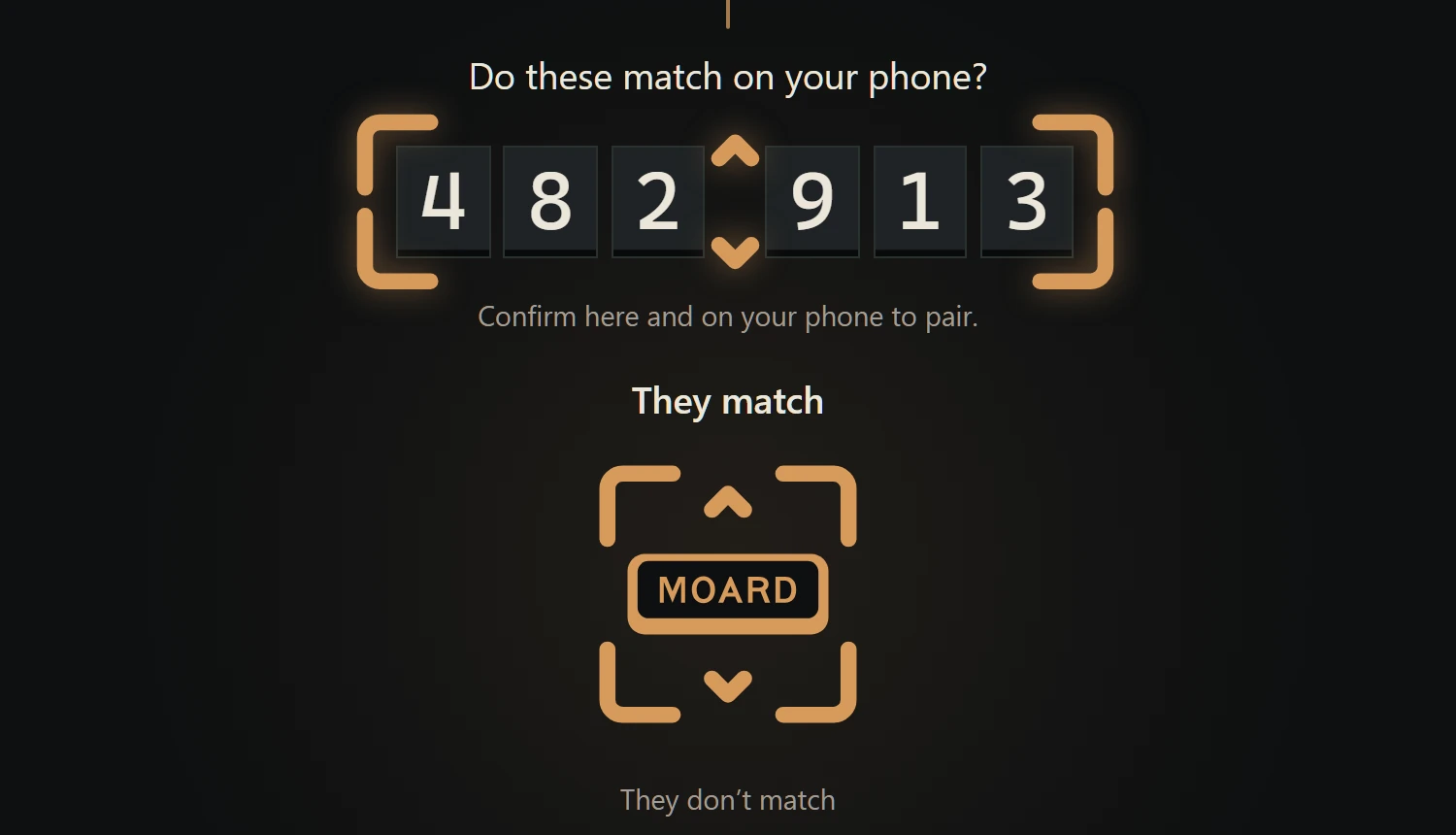
A code lasts ten minutes and works once. The digits prove that your phone reached your PC and not another one, so compare them, don’t skip them.
Type the code instead
On your phone, choose Type the code instead and type the eight letters and numbers shown under the square code on your PC. The code never uses O, 0, I, 1 or L, so there’s nothing to mix up.
Moard cannot use the camera
Your phone asks once whether Moard may use the camera. If you said no, choose Open camera settings and allow the camera for Moard, or type the code instead.
If Moard says That code could not be read, hold the phone steadier, a little further from the screen, or type the code.
This pairing attempt ended
Codes last ten minutes and work once, and closing the code’s window on your PC ends it too. Your phone may instead say That code is no longer available. Either way, get a fresh code.
- On your PC, choose Show a new code, or New code beside the timer. You can also choose Show pairing code in Settings › Devices.
- On your phone, choose Try again and scan the new code.
That code doesn’t match
A typed character is off. Check the code on your PC and type it again, or scan it instead.
Too many wrong codes were tried
Wait a minute. Then choose Show pairing code in Settings › Devices on your PC, and use the new code.
The PC said the digits did not match
- Choose They don’t match. Nothing is paired.
- Show a new code on your PC and pair again, comparing the digits carefully.
If the digits are different again, your phone may be reaching another PC. Make sure you’re scanning the code on your own PC, on your own network. If your PC says The pairing digits changed, compare the digits now on both screens before you choose.
Another phone is pairing
One phone pairs at a time. Finish or cancel on that phone, or choose Cancel previous pairing on your PC.
This PC is not on a network yet
Join your PC to Wi‑Fi or a wired network from the network icon on the Windows taskbar. Then show a new code.
Your PC accepted the pairing. This phone could not save it.
Choose Try again on your phone. It finishes the same pairing; you don’t need a new code. If it happens again, free up some storage on your phone first.
That is not a Moard code
The camera found some other square code. Scan the one in Moard on your PC, under Settings › Devices.
Pair another phone
In Settings › Devices on your PC, choose Pair another device, then pair as above. Phones never count as PCs, and each one pairs with each PC it will control. One device controls a PC at a time; see Standby.
Rename or remove a phone
In Settings › Devices on your PC, press a phone’s name to rename it, then Save. To remove it, choose Remove, then Remove again to confirm. A removed phone can pair again any time.
If Moard says A key may still be held down on this PC, choose Release keys.
On the phone, Menu › Saved PCs lists the PCs it can control. Choose Remove beside one, then Remove PC, to take it off this phone.
Lost the phone? Remove it on each PC it controlled, then sign out everywhere.