Moard starts on your PC.
Install Moard and sign in. Then connect your phone and press a button. You sign in once, on the PC.
Download for WindowsWindows 11, 64-bit Intel or AMD, 8 GB RAM and 1 GB of storage. System requirements
Open moard.ai/setup on your Windows PC to install Moard.
Already installed it on your PC? Get the phone app.
Install Moard and sign in
Run the installer, then open Moard on your PC. Choose Continue with email and sign in with a code we email you. New to Moard? On the sign-in page, choose Set up your account first: your country, your age range, then your email.
Moard needs internet to sign in. Dictate runs on supported PCs.
Connect your phone
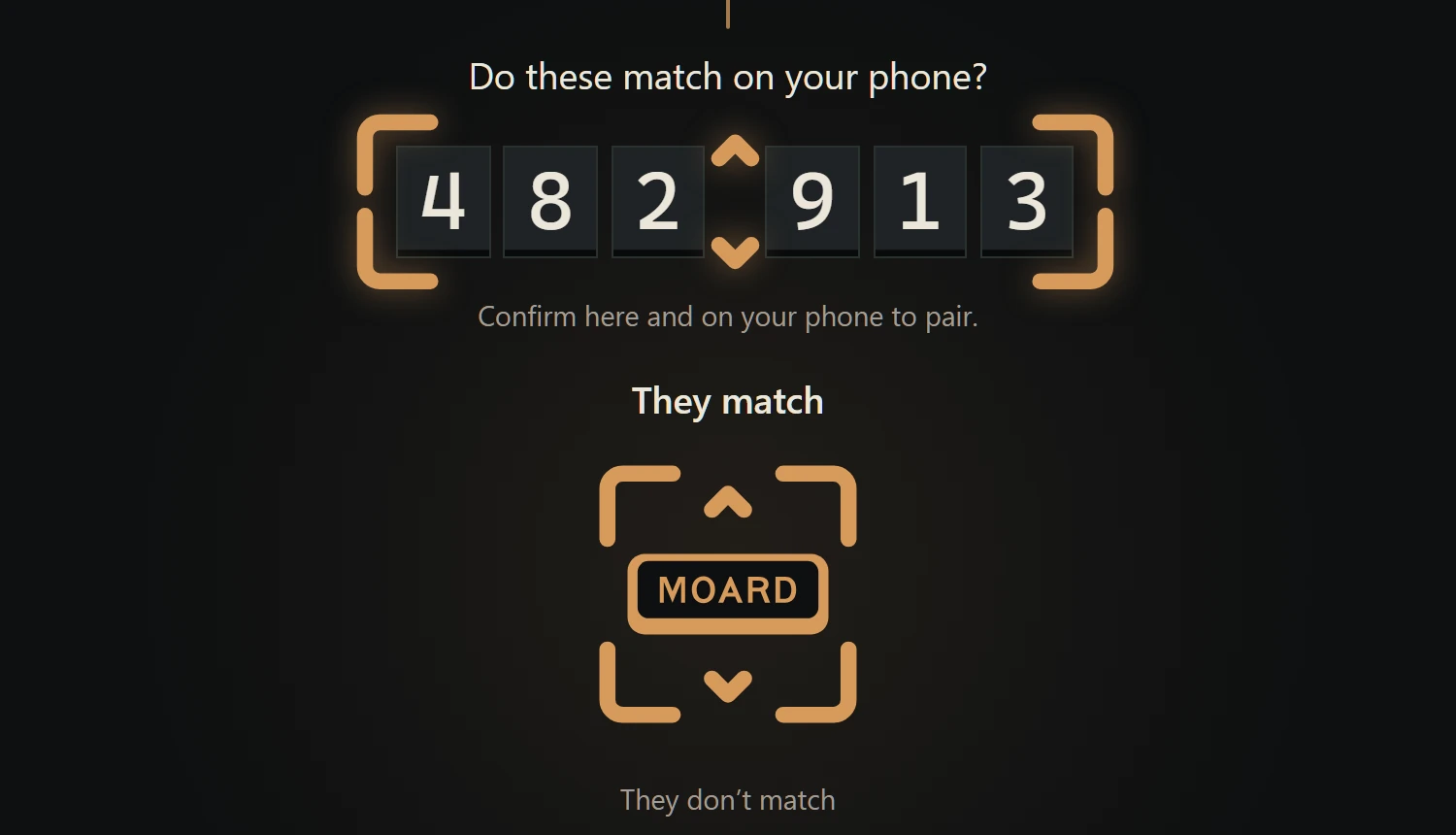
Get Moard from the App Store or Google Play. On your PC, choose Show pairing code. On your phone, choose TAP TO CONNECT and scan the code. When both screens show the same six digits, choose They match on your PC and on your phone. If they differ, choose They don’t match and nothing is paired.
Your phone and PC on the same local network; if Windows has it set to Public, Moard on your PC offers to make it private. Your phone needs no account or plan of its own: your PC’s covers it. Won’t connect?
Press a button
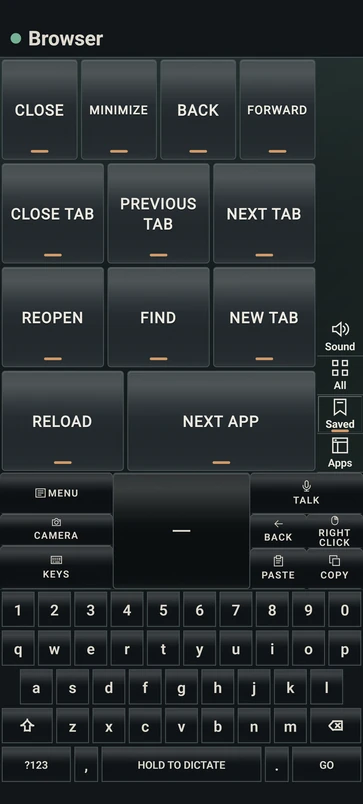
Your phone now shows the touchpad, the keyboard, sound keys and four Windows buttons. Press Next App and watch your PC switch apps. That’s Free. It stays free, and you can rearrange it in My Moard on your PC.
Use voice on your PC
If your membership includes Dictate, open Voice in Moard on your PC and switch on Use voice. Read what leaves your PC, then choose Agree & turn on voice. Choose Start dictating to type. Start talking appears when your account has Talk access.
English, a microphone and internet. Your phone doesn’t need to be nearby. Earlier memberships keep the voice features they originally included; check yours in Settings › Account.