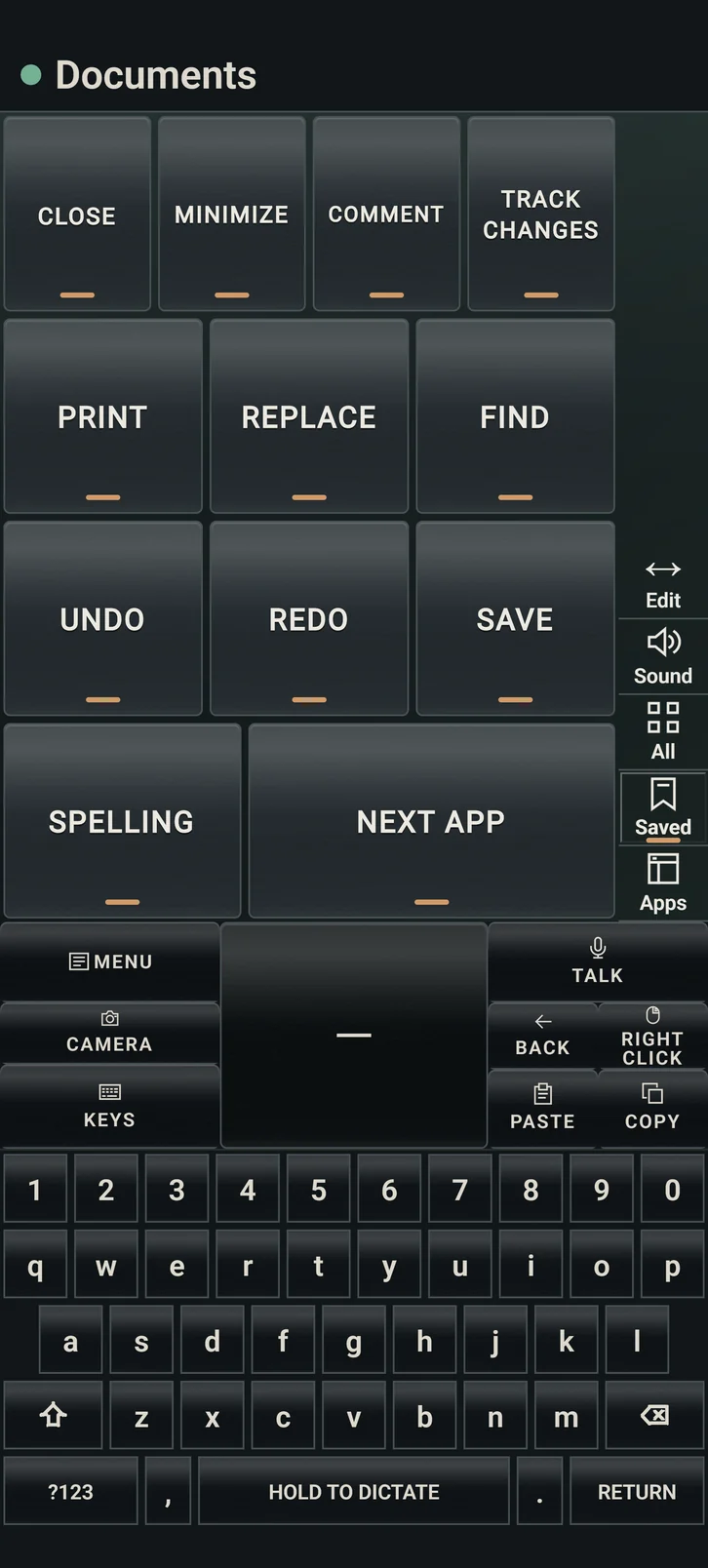
Dictate into Windows from your phone
Select a text field on your PC, speak into your phone and release the Dictate key to enter your words. Dictate supports English on compatible Windows 11 PCs and requires a trial or Plus.
Check availability on your PC
Open Voice in Moard on Windows to check whether Dictate is available. If it is, select Use voice, review the settings and enable Voice. Pair your phone if you haven’t already.
Send your first sentence
- On the PC, click inside an ordinary text field, such as a blank document or a note.
- Open the Moard keyboard on your phone. Hold the space bar marked Hold to Dictate and speak normally. Allow microphone access on the phone if prompted.
- Release the key. Watch for the text in the selected field. To switch fields, click the new field before you start speaking again.
If your words don’t appear
Try a blank document first to make sure the field is active. Password fields and some Windows prompts can block input. Check that Voice is available on your PC and the phone has microphone permission. See Voice help and what Moard shares.